Finding your Signup URL
The signup URL connects an agent to your Nanitor organization. You use it when you install an agent, either in the installer or on the command line. You may also see it called the setup URL, install key or license key. These all mean the signup URL.
Where to find it
To find your signup URL, click the gear icon in the upper right-hand corner, select Organization management, and then click Agent installers. Click the clipboard icon in the Signup URL field, and your signup URL will be added to your clipboard, ready to be pasted into the installer or the command.
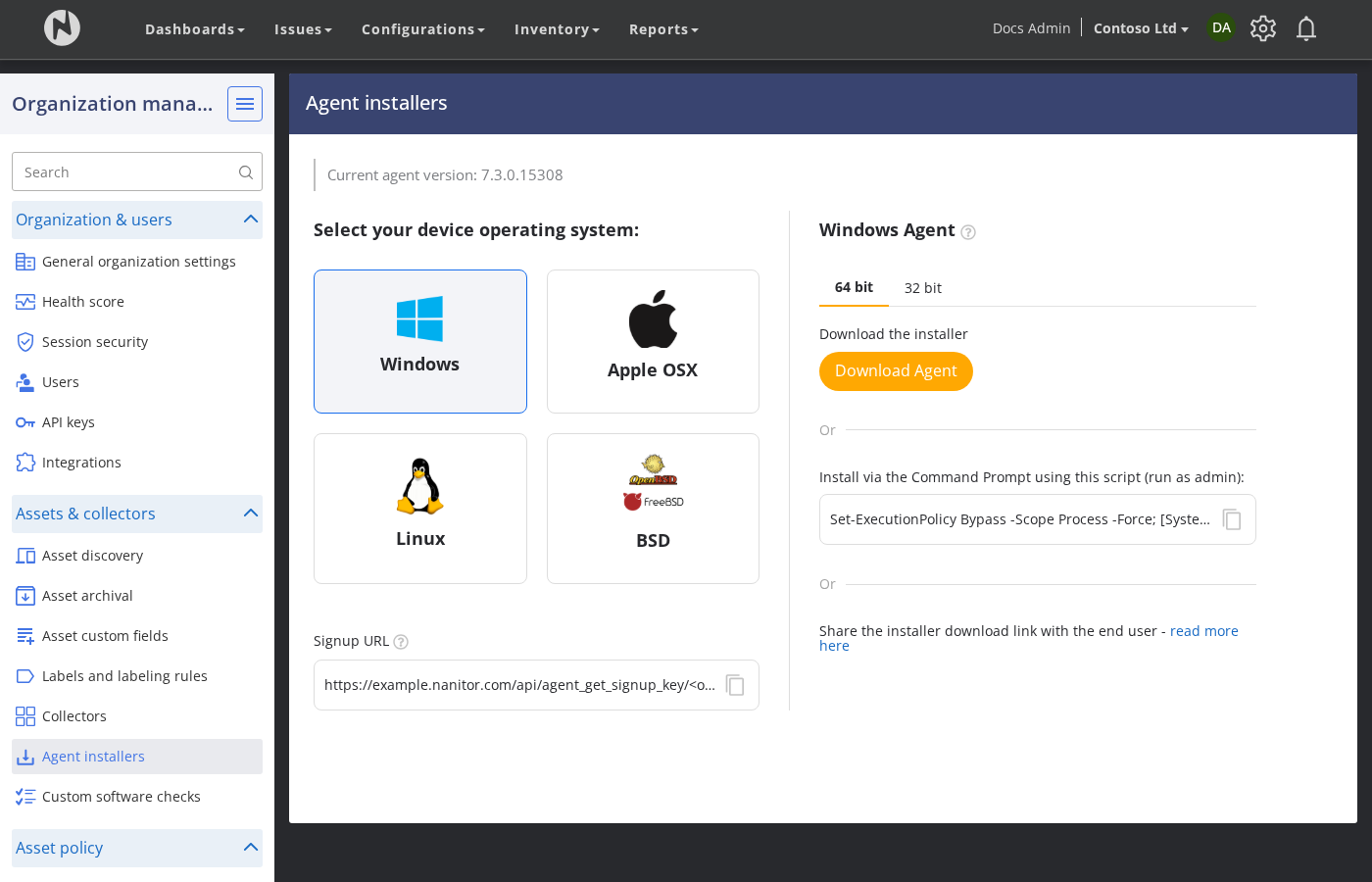
One signup URL per organization
Each organization has its own signup URL, and the signup URL decides which organization an asset goes into.
flowchart LR
    A1["Agent installed with<br/>Contoso Ltd's signup URL"] --> O1["Contoso Ltd"]
    A2["Agent installed with<br/>Fabrikam Inc's signup URL"] --> O2["Fabrikam Inc"]
If you manage several customers, create one organization per customer and use that customer's signup URL for their machines. Before you copy the signup URL, check that you are in the right organization. See Multi-Tenancy Options.
Signup URL and signup key in the agent download
The zip file you download from Agent installers contains the installer and two text files:
signup-url.txtcontains your signup URL. Use this one.signup-key.txtcontains the signup key that the signup URL points to. You do not need it for normal installs.
Both files connect the agent to the same organization. On the command line, always give the signup URL: nanitor-agent signup --key <signup-url> on Linux and macOS, or SIGNUP_URL="<signup-url>" for the Windows MSI.
Keep it safe
Anyone with your signup URL can connect machines to your organization, and the signup URL does not expire. Share it only with the people who install agents, and do not post it in public places.