How do I collect from VMware ESXi and vCenter?
Nanitor collects ESXi hosts through a VMware vCenter. You add the vCenter as an asset on a Nanitor collector, and the collector finds the ESXi hosts managed by that vCenter and adds them as assets of their own. Adding a standalone ESXi host directly is not supported.
Prerequisites
- A Nanitor collector that is connected and can reach the vCenter over the network. See The Nanitor collector for installing and choosing a collector.
- A vCenter user account (username and password) that the collector can log in with. The collector connects to the vCenter on HTTPS, using port 443 unless you enter a different port when adding the asset.
- To get the exclusion by ManagedBy metadata and the logging described in the reference section below, upgrade the collector to Nanitor 7.3.0 or later.
For general guidance on service accounts for the collector, see Setup and configure users for the Nanitor collector.
Add the vCenter
First add a credential, then add the vCenter as an asset.
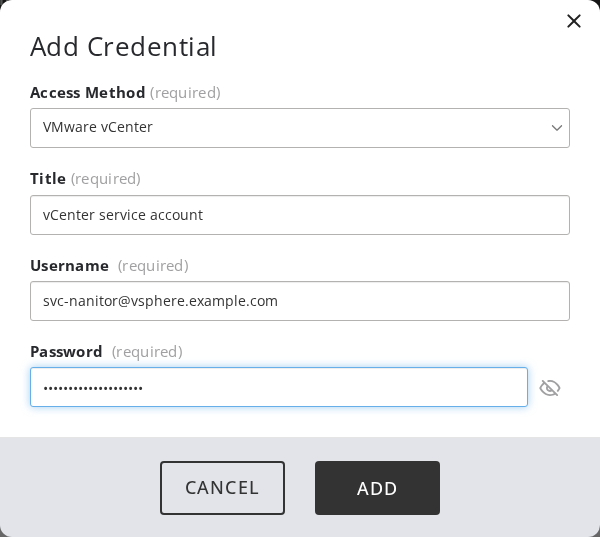
Step 1: Add a credential
- In Organization management, open Collectors, then open the Credentials tab and select Add credential.
- In Access Method, select VMware vCenter.
- Enter a Title, the Username, and the Password. All three are required.
- Click Add.
Step 2: Add the vCenter as an asset
- In Organization management > Collectors, open the Assets tab and select Add asset.
- In Asset type, select Server.
- In Collector, select the connected collector that can reach the vCenter.
- In Server type, select VMware vCenter.
- In Credential, select the credential you created.
- In Address (Hostname/IP), enter the hostname or IP address of the vCenter. Port is optional.
- Optionally select a Label, then click Add.
The ESXi hosts that the vCenter manages appear as separate assets. Each ESXi asset is collected through its parent vCenter asset and by the same collector.
What is collected
For the vCenter asset, the collector reports the vCenter hostname, version and build, its IPv4 addresses, and its CPU count and memory.
For each ESXi host, the collector reports the hostname, ESXi version and build, IPv4 addresses, and hardware details (CPU model, speed and core count, memory, and hardware model). The collector also evaluates the ESXi benchmark checks. These include host-level checks, such as lockdown mode, virtual switches and port groups, and VM-level checks, such as virtual machine devices and advanced settings.
Troubleshooting
The collector writes its log to nanitor_collector.log (Nanitor_Collector.log on Windows) in the collector's data directory. For installing and managing the collector, see The Nanitor collector.
| Symptom | Cause and fix |
|---|---|
The asset does not check in, and the collector reports Error connecting to vCenter in its debug output. |
The collector could not log in or reach the address. Check the address and port, the credential, and network access from the collector to the vCenter. |
The collector reports Esxi as collected device not supported in its debug output. |
The address points at an ESXi host and not at a vCenter. Add the vCenter instead. |
The collector reports Error parsing VC URL in its debug output. |
The address is not a valid hostname or IP address. Edit the asset and correct it. |
| The ESXi hosts do not appear as assets. | The hosts are added on a check-in after the vCenter connects. Wait for the next check-in. If they are still missing, check that the vCenter user can see the hosts in vCenter. |
| A vCLS VM still shows up in VM-level findings. | Make sure the collector is on 7.3.0 or later. Then request diagnostics and check the VM's name and ManagedBy value. Send the result to Nanitor support if the VM is listed without an exclusion. |
Reference: excluded virtual machines
Which virtual machines are excluded
VM-level benchmark checks are evaluated against the virtual machines on each ESXi host, except for the VMs that the collector excludes. A VM is excluded when any of these is true:
| Reason | How the collector decides | Logged as |
|---|---|---|
| vCLS name | The VM name starts with vCLS-. |
Skipping vCLS VM: <name> |
| vCLS ManagedBy | The VM's ManagedBy metadata names the extension com.vmware.vim.eam (VMware ESX Agent Manager), which deploys the vCLS VMs. |
Skipping vCLS VM (ManagedBy): <name> |
| No configuration | vCenter returns no configuration for the VM. | Skipping VM <reference>: config not available |
vCLS (vSphere Cluster Services) VMs are created and managed automatically by VMware and cannot be modified by you. Excluding them keeps findings that you cannot remediate out of your issue counts and health scores.
A VM that is managed by a different extension is not excluded. The collector logs it as Keeping VM <name> managed by extension <key>.
Note
The exclusion relies on the VM name and the ManagedBy metadata that vCenter reports. If a VM that you expect to be excluded still appears in findings, check the collector log or request diagnostics as described in the next section, and contact Nanitor support with the output.
Where the exclusions are logged
On every check-in, the collector writes these lines to the collector log at info level:
- One line for each excluded VM, in the format shown in the table above.
- One summary line for each ESXi host:
Enumerated <n> VMs on host <host> (<n> excluded as vCLS, <n> without config).
To see every VM on each host, including its ManagedBy value and the reason it was excluded, request diagnostics for the vCenter asset or for the ESXi asset:
- Open the asset and choose Request diagnostics.
- Optionally add a note and click Request.
The diagnostics list each VM in the form <name> (managed_by=<key>, managed_by_type=<type>), and add excluded by name, excluded by managedBy or excluded by config unavailable for the excluded ones. A vCenter asset lists the VMs of all its hosts, and an ESXi asset lists the VMs of that host only.
Related
- The Nanitor collector
- Setup and configure users for the Nanitor collector
- Assets in the Nanitor User Guide, which describes the parent asset